Monday, November 23, 2020

Photoshop for Linux, free Photoshop - General Image Manipulation Program, GIMP, has turned 25 (1124 )

Photoshop for Linux, free Photoshop - General Image Manipulation Program, GIMP, has turned 25

“Happy 25th birthday GIMP!” by Aryeom, Creative Commons by-sa 4.0)
"Happy 25th birthday GIMP!" by Aryeom, Creative Commons by-sa 4.0)

---
What is GIMP?

It is freely distributed software for such tasks as photo retouching, image composition and image authoring. 

GIMP is an acronym for GNU Image Manipulation Program. It is a freely distributed program for such tasks as photo retouching, image composition and image authoring. 


---
How the GIMP started?


As a July 1995 thought bubble by Peter Mattis, who posted the following to several newsgroups: 

Suppose someone decided to write a graphical image manipulation program (akin to photoshop). Out of curiosity, I have a few questions: What kind of features should it have (tools, selections, filters, etc)? What file formats should it support (jpeg, gif, tiff, etc) ? 

Four months later, Mattis and fellow University of California Berkeley student Spencer Kimball delivered what they described as software - "designed to provide an intuitive graphical interface to a variety of image editing operations." 

The answer to the file format support question turned out to be GIF, JPEG, PNG, TIFF, and XPM. The rest is history. 

Richard Stallman gave Mattis and Kimball permission to change the "General" in its name to "GNU", reflecting its open-source status. Today the program is released under the GNU General Public License. 

As the program added features such as layers, it grew more popular and eventually became a byword for offering a FOSS alternative to Photoshop even though the project pushes back against that description. 

The project's celebration page says volunteers did their "best to provide a sensible workflow to users by using common user interface patterns. That gave a few questionable monikers like 'Photoshop for Linux', 'free Photoshop', and 'that ugly piece of software'. 


---
As a free resource, GIMP is fantastic. 


It has a tremendous number of tools and capabilities which would cost you a pretty penny elsewhere, and the user interface is clean and well organized. It does require a bit of a learning curve, whether you're transitioning from a similar program elsewhere, or whether you're brand new to the concept and learning from scratch. 

However, the investment of time and effort on the front-end, familiarizing yourself with the program and getting comfortable with its abilities and options, will pay excellent dividends moving forward. 

Essentially you're trading that time and effort for the savings you get by not having to purchase a commercial program elsewhere, which, to be fair, you'd have to take time to learn a purchased program as well. 


---
GIMP is a cross-platform image editor available for GNU/Linux, OS X, Windows and more operating systems. It is free software, you can change its source code and distribute your changes. 

Whether you are a graphic designer, photographer, illustrator, or scientist, GIMP provides you with sophisticated tools to get your job done. You can further enhance your productivity with GIMP thanks to many customization options and 3rd party plugins. 


The Website: https://www.gimp.org/


Top 7 Linux Tools For Digital Artists

Top 7 Linux Tools For Digital Artists

Linux has no dearth of graphic design software: 7 Best Linux Tools For Digital Artists


Brief: In the list, you'll see the best Linux graphic design software.

There are plenty of Linux graphic applications which help digital artists enhance their work or build something interesting from scratch. Well, maybe, the applications that do exist with Linux are not commercially popular, but they do offer powerful features to act as a perfect companion for a digital artist.

In this article, we would be specifically concentrating our focus on the tools that deal with digital drawings/sketches and image editors.

- Best Graphic Design Software for Linux

- Linux Graphic design softwares


Let us move on to check out 7 of the best Linux tools for digital artists.


1. GIMP

GIMP: linux-tools digital artists


GIMP stands for GNU Image Manipulation Program. GIMP is one of the best free tools for a digital artist to have installed on Ubuntu or any other Linux distributions.

It is a completely free Linux tool for a digital artist irrelevant to the level of expertise. It is meant for everyone. Even if you are an expert, you can make use of it, or if you are a novice, you can utilize it well. GIMP has a lot to offer than just editing a photo or redesigning it. Several plugins and extensions make GIMP a fortune to have on one's system. Moreover, without spending a penny, you get to do all the basic designing or editing stuff and some of the complex image manipulation tasks as well.

If you are running on Ubuntu, you can find it listed on Ubuntu Software Center. You can directly install it from there and if you are on a different Linux distribution, you can head to their installation help page for further information.


2. Krita

Krita: linux-tool digital artists


Yet another impressive Linux tool for digital artists. Krita was meant as an add-on with KOffice to facilitate image editing within the suite of office tools. However, it turned out to have a lot more potential to be an independent desktop application competing with programs like GIMP.

To our surprise, it still is not like GIMP. However, more focused for use by illustrators, cartoonists, and concept drawing artists. It definitely offers a range of features and is constantly developing as we talk. Also, you could argue that Krita provides a better user interface compared to GIMP.

Recently, it introduced render animation capability, full support for OSX, enhanced color picker and more. It is similarly extensible with the use of plugins or extensions. It brings in a good collection of filters to choose from and also provides the ability to control layers in an image just like Adobe Photoshop. It can import a lot of files, but it has discontinued support for PSD files.

Features and usability are the strong point of Krita. No wonder this French university dumped Adobe Photoshop for Krita.

You can grab the snap from Ubuntu's software center, or you could download an AppImage and make it executable to install further. For more info, you can try heading to Krita's download page.


3. Inkscape

Inkscape


It is an open source vector graphics editor. You can have it installed on your Linux system as an alternative to Adobe Illustrator. The user interface offered here may not be much of attraction, but it is simply darn good with the powerful features and tools offered.

It is obviously one of the best Linux tools for digital artists around that are actively developed. If you find it easier to work with but still you prefer Adobe Illustrator, then you can easily export your file in Illustrator file format and import it on Illustrator later. You can export to SVG format, SVGZ, LaTeX, and POV-Ray file format as well. There are extensions which let you save files as PDFs, EPS, and so on.

Inkscape-digital artist


Inkscape may not be the one if you are a leading expert because it lacks certain features available on popular commercial vector graphics editor. However, if you are an artist who prefers a free and an easy-to-use tool over an expensive one, you can definitely make use of it.

You can get this directly from Ubuntu Software Center. In either case, if you are running a different Linux distribution, you can try installing it through the terminal by entering the following command: sudo apt install inkscape.


4. Karbon

Karbon-best linux tools digital artist


An open source vector drawing program. Karbon is also recognized as Karbon 14, Kontour, and KIllustrator. It lets you edit and create vector drawings. It is one of the most suitable Linux tools for digital artists who deal with vector graphics. It does include gradient tool, path shape tool, pencil tool, calligraphy tool, and so on.

It brings in support for shapes as well as texts. You can import SVG images and edit it with great ease. Karbon provides a great user interface which is customizable. In addition, it offers advanced path editing tool. Also, it is extensible for a variety of use by utilizing the plugins compatible with it.

You can directly install it from Ubuntu's Software center. In either case, you can type in the following command in the terminal to install it: sudo apt install karbon.


5. Vectr

Vectr graphic tool for Linux


Vectr graphic tool for Linux

Like the above two graphic tools in the list and as the name indicates, Vectr is a tool for vector graphics. It is slightly different than the regular desktop software.

You can use Vectr in your web browser as well. It also has the real time collaboration feature. You can provide the URL of your design and others can watch you editing an image in real time.

Vectr graphic tool

The user interface is another plus point. The modern UI and aesthetic looks certainly sets the mood for creative designs. It also has a set of documentation for new users to get started with creating vector design.

The desktop app is available for Linux, Windows and MacOS. It is not an open source software, however, you can download it for free.


6. Pinta

Pinta: best-linux-tools digital artists


Just like any other image editing software utilities, Pinta came out of nowhere to become one of the favorite Linux tools for digital artists. It is an open source software utility that brings in a lot of features.

If you previously used Paint.Net software, it is pretty much the same. In other words, you can keep it as an alternative to Paint. Net for Linux/Ubuntu. You will find a variety of drawing tools that include – paintbrush, freehand drawing tool, pencil, shapes, and so on. It is not just an ordinary paint tool but also brings in support to let you control the layers of an image. Also, you get the ability to add extensions for experimental abilities.

In addition, it offers a lot of filters and effects (motion blur, red-eye removal, glow, warp) to help enhance the image. You can easily adjust the toolbar to the required position (Either as a floating window or as a docked toolbar). It incorporates a dock-style adjustment feature, with which you can configure various pads to dock or undock according to your work style. It does come with support for file formats such as OpenRaster and others.


7. MyPaint

best-linux-tools digital artists


Yet another open source Linux tool for digital artists. MyPaint focuses on drawing sketches. If you have a touchscreen enabled display, you will be able to make the most out of it. The user interface is quite simple and easy to use.

It is definitely a worthy alternative to MS Paint on Linux with some advanced features. It brings in a basic layer support and unlimited canvas. You do not have to resize the canvas again (or tweak it). You get extensive brush options which you can try on a scratch pad attached to the dock.


If you are an artist, you can digitally make anything out of something using this tool. I would even call it the best Linux drawing software.

If you want to install it, you can find it on the Ubuntu Software Center. In either case, you can install it using the commands mentioned below: sudo apt install mypaint.


Conclusion: 


Finally, you came to know about some of the best Linux tools for digital artists. Of course, the list we compiled contained only the popular and loved choices for almost everyone using Linux.

Personally, I prefer using an online tool like Canva for easily creating stunning graphics. But you cannot be online all the time and this is why you can install software to create graphics whenever you want.

In reality, there are tons of tools for digital artists out there but most of them are for Windows and MacOS.

Apart from that, did we miss any of your favorite Linux tools tailored for digital artists? If you are a digital artist, which one of the above would be willing to choose as the best for your use?

Ohne richtiges Werkzeug kann auch der beste Handwerker auf der Welt keine guten Ergebnisse erzielen. Der Grundbaustein um das digitale Zeichnen zu erlernen ist das passende Grafiktablett.


Wednesday, April 10, 2019

The Best Software For Drawing Artists

The Best Software For Drawing Artists

Drawing boards are a great invention for artists.Drawing board are more secure and reliable, offer tons of customization option, and you can store your artwork forever on storage devices.

It has transformed the way how artistas create artwork that sweeps the audience off their feet.the modern artists are moving towards digital devices and use drawing tablets that can help them create artwork with unlimited customization options.

Having a drawing board is not enough to unleash your creativity You would also require the right software for drawing tablet.

In this article, we have gathered the best software with their pros and cons to help you find the best editing app.


Autodesk Sketchbook:

from autodesk

This sketching tool is free for personal use, which is a recent update by the Company, but a paid one for commercial purposes. The Autodesk Sketchbook is perfect for beginners as well as intermediate users as it comes with a lot of customization option. The exceptional interface helps in maximizing the drawing space of every device.

For beginners and even for intermediate users, The Sketchbook offers tons of customization option to get started backed by a simple yet practical user interface.

Sketchbook offers a precise and faster workflow thanks to its drawing engine that can handle 100mpx canvas while maintaining the zoomed-in feeling that you get while working on natural canvas.

You can also import sketches from your paper to the Sketchbook by clicking a picture, and the app will import the line art with a transparent background that can be colored using the sketchbook app.

Get Autodesk Sketchbook


Adobe Photoshop CC:

This one of the widely used and recommended photo editing software by digital artists all over the world. Photoshop has a lot of tools from basic text tool to pencil tool to a number of different brushes, it can offer anything you ever need to take your artwork to the next level.

Adobe Photoshop has earned itself a reputation in being the most preferred photo editing app and rightly so with all the tools it has on offer apart from consistently adding new features regularly, Adobe Photoshop is indeed among most recommended tools by digital artists.

From the basic text and pencil tool to the advanced textures and hundreds of brushes, Photoshop has everything that you need in a digital painting app to create a next-level digital artwork.

Do note that all the Adobe software involve a steep learning curve, you might have to put in a bit of effort to learn the software but considering the output it can produce, putting in some effort to learn shouldn't be much of a problem.

Get Photoshop CC


Corel Painter 2019:

The modern Dark UI paired with better interface control offers precise tools to create stunning graphic art using your drawing tablet.
The latest iteration of Corel Painter comes with a vastly improved performance offering great workflow for the digital artists.
Corel allows you to customize anything you want, be it brushes, palettes, papers, colors, patterns, gradients, etc. It has every professional tool to provide the user with a seamless drawing experience.
The Corel Painter comes with over 900 brushes including Natural-Media and Painter signature brushes in addition to 36 new brushes in the new version including Pattern Pens and Stamps brush. Furthermore, you can also explore the 36 brush categories to find a brush for every task.
It also comes with features like mirror painting, paper texture, surface texture along with other collection of textures to apply on a canvas or media.

Get Corel Painter


Clip Studio Paint:

from clip studio

Clip Studio Paint is a premium illustration tool that can help you create concepts for Manga, illustration, and Animation.

It has improved features for coloring your comics, cartoons or other artworks. The artist can customize the brushes according to his requirements. Complicated patterns can be drawn with the help of the decoration tool.the user can also access a vast library of free downloadable content, which includes brushes, tones, 3D models and more such items.

Clip Studio Paint is an affordable solution for drawing tablets that offer impressive drawing and layout tools.

The creators of manga, comics and cartoons extensively use this software. It comes with specialized features for drawing comics and cartoons along with improved features for coloring your artwork.

Download Clip Studio Paint


Krita:

from krita

Whether you want to create concept art, texture or matte painting, or illustration and comics, Krita can help you achieve everything without spending a penny on the tool.

Krita is a free and open source painting program, which has been developed for artists, illustrators and for the VFX industry. The brush stabilizers offered by Krita will smooth and stabilize the brush strokes. Over 9 unique brush engines let you customize the brush to perform specific needs.the brush stabilizers to correct any unwanted brush strokes, easily accessible color palette, over 9 brush engines including Color Smudge engine, Shape engine and Particle engine for customization.

Krita comes with all the basic as well as advanced features including full-color management, OpenGL Enhanced, HDR Support and full compatibility with PSD files.

Krita is a free open source digital art software compatible with Windows, Mac, and Linux computers that allow you to create concept arts and offers all the essential for both the beginners and professionals.

Download Krita


ArtRage 5:

from ArtRage 5

ArtRage 5 is the latest version of the popular digital painting software from the Ambient Design.with new digital editing tools, provide improved performance.

The advanced features make creating art a fun and easy activity. The user can personalize everything and can adapt the software to one's needs.ArtRage 5 retains the traditional canvas texture but enables you to fine-tune the texture as per your need to create a perfect background, fine sketch paper, rough canvas, and even custom patterns.

The latest version comes with a new set of tools, improved performance and some enhancements to the existing tools.you can customize your paper to get the desired effect and allows you to design brushes, composition tools, pattern and gradient fill, filters, etc.

ArtRage is known for its realism of traditional paint structure while offering convenient editing tools to achieve the same.

Download ArtRage 5


conclusion

With the development of digital painting applications for many years, developers have been trying to add new functions to tools. Digital painting is now a very mature technology. If you are an aspiring digital artist looking for the best digital painting application, try the suggestions in this article.
I hope this article can help you. Have a good time!

Friday, April 5, 2019

Review: XP-Pen Artist 13.3 Graphics Display

Review: XP-Pen Artist 13.3 Graphics Display

XP-Pen Artist 13.3 v2 Graphics tablet monitorem Art Review

First Impressions

The product arrived on time.The packaging was pretty impressive
The box was very well, I loved the packaging it has a beautiful and very firm and strong box so in case you are shipping it far away rest assure the package is well protected.
The overall build quality is solid. Edges are all rounded off. It actually looks quite good. Can’t compare to the build and looks of the Wacom Cintiq but the price is much more affordable.
XP-Pen Artist13.3 is one of the most affordable Cintiq alternatives out there, price-wise. It’s really a good choice if you’re cash-strapped, as long as you don’t mind drawing on a smaller screen.

XP-Pen Artist 13.3 v2 Graphics tablets

Specifications

  • Product dimensions: 39 x 25 x 1.4cm
  • Active area: 29.3 x 16.5cm
  • Screen: 13.3 inches with 1920 x 1080 resolution
  • Panel type: IPS
  • Colors: 16.7 million
  • Input: USB-C
  • Graphic ports supported: HDMI, miniDisplay
  • Pen does not require battery
  • Visual Angle:178°
  • Pressure sensitivity: 8,192 levels
  • Display Color Gamut:75% Adobe RGB
At the time, it’s selling at official site: https://www.xp-pen.com/


XP-Pen Artist 13.3 v2 Drawing tablet monitorem Art Work

Package Contents

  • XP-Pen Artist13.3 V2 tablet
  • HDMI/Power/USB all-in-one cable
  • USB extension cable
  • HDMI to miniDisplay adapter
  • Pen and stand
  • 8 replacement nibs
  • Wall charger and various international plugs
  • Manual, warranty card, cleaning cloth and glove
The packaging box features a very simple clean design. With this box, you lift up the cover to reveal the pen display and all the things included.

The Screen


XP-Pen Artist 13.3 v2 Graphics tablet monitorem Art
XP-Pen-Artist13.3-Screen
When you first open up the box, the screen has a protector film over it which has to be peel off to reveal the matte screen protector. It’s a nice texture to draw on.
On XP-Pen Artist13.3’s screen there’s a screen protector that adds texture to the screen. The purpose for this texture is to add friction while you draw, and to hopefully make it similar to drawing on paper. 
Calibration on the tablet is decent and does stray a bit towards the edges, but not so bad to ruin the drawing experience. I recommend calibrating the tablet before you draw if you are moving the tablet around.
XP-Pen Artist13.3 comes with a 13.3-inch screen, which provides you with a decent drawing area (the active drawing area is 293.76 X 165.24 mm). the tablet used an IPS panel so colour reproduction is quite decent. Some one will think this is small draw area, but you could get used to it if this is your first pen display, or if you want a portable one to take with you on the go.
This 13.3 inch pen display supports a 1920 x 1080 resolution. For a screen this size, which isn’t too big, everything appears sharp.

The Pen


XP-Pen-Artist13.3-Drawing-Pen
XP-Pen Artist13.3 comes with a passive pen. The pen supports 8,192 levels of pressure sensitivity. It does not use battery so it does not need to be charged.it has two side buttons but no eraser.
The pen comes with a pen holder to store it away while not in use. Inside the pen holder, you can find 8 replacement nibs.
Replacing the pen nib is something you ought to do when the current nib become pointy.

Hot Keys


XP-Pen Artist 13.3 v2 Graphics tablet display
XP-Pen-Artist13.3-Hot-Keys
XP-Pen Artist13.3 comes with 6 hot keys. You could customize these keys to do all sorts of the shortcuts you do on your art program. For example, you could set one of the keys to switch to the selection tool(assuming you use it a lot), while having another one to activate a certain filter. The possibilities are high.
Having 6 hot keys in a cheap drawing pen displays like this is really nice too. It can help you replace the keyboard in case you don’t need that much keyboard shortcuts.

The Driver

Before you get to install the driver, it’s important you remember to uninstall any graphics tablet driver on your computer, either from Wacom or another manufacturer.
With the driver, you can change the pressure sensitivity, assign functions to the side and physical shortcut buttons, calibrate the screen to compensate for parallax offset and switch to left-handed mode if you want to.
When you’re using it for the first time, there’s going to be parallax. The glass is close to the screen but there’s still a distance. There’s parallax so you’ll definitely want to calibrate the screen.
It is very easy to install and I love the way everything looks and feels. I use both photoshop, paint sai, and clip studio and this tablet works great for all of those programs.

Drawing performance


XP-Pen Artist 13.3 v2 monitorem Art Work
Most of the functions such as sketch, paint, design and edit can be executed directly from the tablet screen, work naturally and intuitively.
There’s this inconsistency or the challenge of maintaining a consistently smooth line when drawing curves. When you’re testing for it, it’s going to show up, but when actually drawing with it, it’s not that big of an issue. Out of all the apps, Clip Studio Paint works perfectly without any of the wobble or stroke issues.
Enjoy Every Detail Artist13.3 driver can support 4K displays, allowing you enjoy every sharp detail and every soft line. The newest brightness adjustable buttons help you to find the most suitable lightness, offering you an comfortable drawing experience.
If you’re using Windows, the performance of the pen is better than on Mac. You get nicer looking lines.

Pros

  • Good build quality and design
  • Pen does not require battery
  • 8 replacement tips included
  • 6 shortcut buttons are useful
  • Screen has decent colour accuracy and viewing angles
  • Price is very competitive on this size

cons

  • Matte screen protecter affects sharpness of the screen
  • Parallax exists, corrected by calibration
  • No stand included for the display

XP-Pen Artist 13.3 v2 Graphics tablet

Summary

It’s a great little drawing tablet! Full support for Windows 10, I definitely recommend this tablet to artists who cannot afford the Wacom price.
For anyone that wants one of those fancy Wacom Cintiqs but can’t afford one, this tablet might be a great alternative!
Warm Reminder: the drawing tablet could draw power from USB port, as that could mean the ability to use it on the go more easily than other pen displays.
If you want to learn more about the XP-Pen Artist 13.3, check out the link below: https://www.storexppen.com/buy/artist13_3.html

Wednesday, April 3, 2019

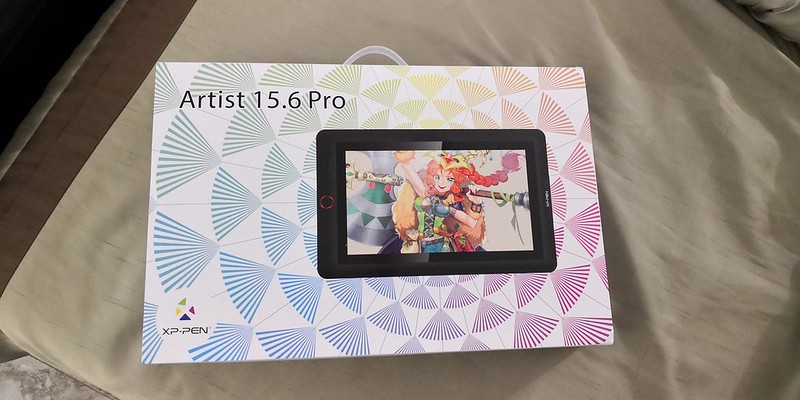
XP-Pen Artist 15.6 Pro Graphic Tablet Review


XP-Pen Artist 15.6 Pro Drawing tablet with Screen Review


XP-Pen Artist 15.6 Pro Graphics tablet monitorem Art Work

I'm a artist who is getting into digital art because I really liked drawing , but wanted something better, both with hardware as well as software. I considered the iPad Pro but feared the price and that iOS would ultimately frustrate and limit me. The Wacom Cintiq 16 is also more expensive. Ultimately I decided on the 15.6 Pro.

XP-Pen Artist 15.6 Pro is the newer model of the Artist 15.6 , but with pen tilt Support , The tilt function ensures that the accuracy of the pen remains the same when tilted, offering a real and natural drawing experience.


XP-Pen Artist 15.6 Pro Graphics tablet Art Work

Artist 15.6 Pro has been used 120% sRGB ( 85% adobe rgb color accuracy) in the device to give you more vivid, clear and sharp color quality that also enhances the accuracy of any image.

It has greatly improved on parallax, New optical bonding process that greatly reduces parallax , becuse of new Technology their has No Air Gap.

Compared to the Artist 15.6,the Artist 15.6 Pro features 8 fully customizable shortcut keys and 1 Red Roller Wheel which puts more customization options at your fingertips to suit you preferred work style, allowing you to capture and express your ideas easier and faster for optimized workflow.


XP-Pen Artist 15.6 Pro Graphics tablet monitorem

Specifications:


  • Display Size: 15.6″
  • Aspect Ratio: 16:9
  • Shortcut Keys: 8
  • Roller Wheel: 1
  • Pen: P05R Battery-free Pen
  • Pen Pressure: 8192 levels
  • Tilt: 60 degrees
  • Report Rate: ≧200 RPS
  • Display Resolution:1920 (H)*1080(V) pixels
  • Display Color Gamut:88%NTSC, 120%sRGB
  • Resolution:5080 LPI
  • Visual Angle:178°
  • Input Device:USB
  • Reading Height:10mm
  • Response Rate: 25ms


XP-Pen Artist 15.6 Pro Graphics tablet for Art Work

Package Contents:


  • XP-Pen Artist 15.6 Pro tablet
  • XP-Pen P06 battery-free pen
  • Pen case
  • Combined cable
  • USB type-A extension cable (for power)
  • USB power adapter
  • Outlet adapters for international power outlets
  • HDMI to Mini-DisplayPort adapter
  • Pen nib replacements x8
  • Anti-fouling glove
  • Screen cleaning cloth
  • User manual
  • Warranty policy and warranty card

Tuesday, April 2, 2019

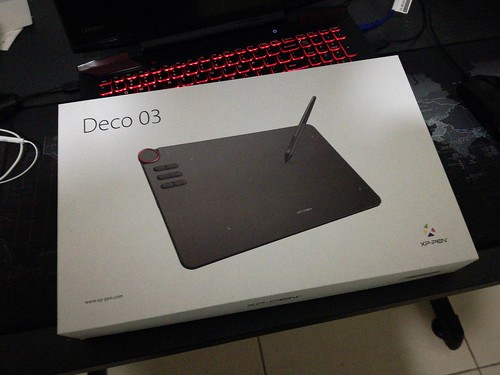
XP-Pen Deco 03 Graphic Tablet Review

XP-Pen Deco 03 Drawing Tablet Review
I’ve owned a Wacom Intuos Pro before, and I wanted to see if the XP-Pen Deco 03 could compare in quality and drawing performance for less than 1/3rd the price.

xp-pen graphics tablet

First Impressions

The XP-pen Deco 03 tablet is beautiful! It has 6 buttons and a red dial roller key, A Multi-function Red Dial Design! Utilize multi-function dial by rotating its front and side. The pen is light with a nice rubber grip. in the box you even get a drawing glove! The tablet is thin and light, perfect for those who like portable graphics tablets for events .

xp-pen graphics tablet

Important specifications

  • Price: 99.00 USD
  • Active Area: 10 x 5.62 inches
  • Pen Type: Battery-free
  • Pen Buttons: 2 side buttons, no eraser
  • Pen Pressure: 8192
  • Pen Tilt Sensitivity: None
  • Expresskeys: 6 buttons, 1 spin wheel
  • Reading Height:10mm
  • Other features: Wireless

Package Contents

  • XP-Pen Deco 03 tablet
  • Battery-free pen
  • 8 Replacement Pen Nibs(stored inside the Pen Stand)
  • Wireless USB receiver(stored inside the Pen Stand)
  • USB type-C cable
  • Manual and warranty card
  • Artist glove
The official site:
https://www.xp-pen.com

Overall Build


xp-pen graphics tablet
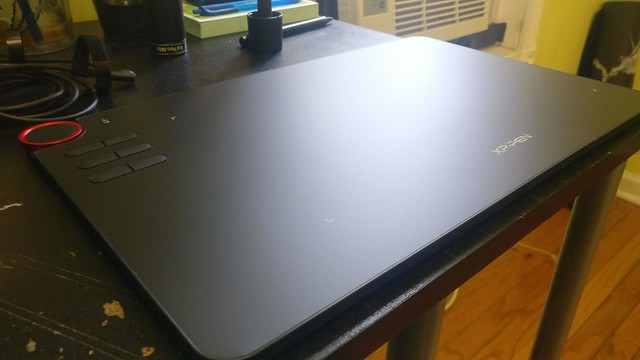
The tablet has a flat surface and nothing special going on around it. The design of Deco 03 looks sleek and minimalist. The only special flair is the red dial in the corner of the tablet.drawing surface is matte and has a nice texture to draw on.
Corners are nicely rounded off. The overall construction and build quality is good, and feels premium despite its plastic build. This is one good looking tablet.

xp-pen graphics tablet

Tablet surface

The surface of Deco 03 is smooth but upon using it the pens nib felt scratchy, so when drawing it almost feels like you’re drawing on paper. Making it great for any traditional artists who are new to drawing tablets as it will help ease into digital art.
The design of Deco 03 looks sleek and minimalist. The working area is 10 x 5.6 inches and it comes with large bezels that you can rest your hands on.drawing surface is matte and has a nice texture to draw on.

The Pen


xp-pen graphics tablet
Holding the pen is very comfortable
This pen is XP-Pen’s P05 battery-free pen. It has a fairly large rubber grip with a bulge near the end to catch your fingers.the top of the pen has nothing. No eraser or charging port.
For those who don’t like the pen eraser,the most common reason was that using shortcut buttons to switch to eraser is much faster than physically flipping the pen.
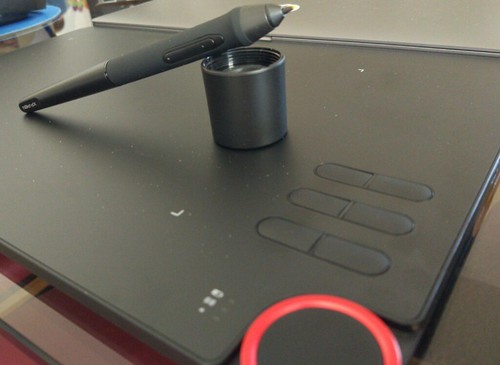
The case opens on both ends. On one side with the larger cap, it reveals the pen.
The pen case included is a solid matte surface cylindrical case. Both ends have rubber so it sits really firmly on table when placed vertically.
The pen stand is a really useful design case holds the pen nibs and wireless USB dongle. The pen nib remover hole is also built into the middle of the circle of nibs. It’s nice that you have everything you need for your pen in the case itself, and you’re way less likely to lose the small wireless USB receiver because there’s a spot for it in your pen case.
Overall, the pen stand is a really useful design case.

xp-pen graphics tablet
The pen stand on both ends. On one side with the larger cap, it reveals the pen.
At the other end, it reveals 8 replacement tips, the nib remover and USB receiver.this case protects the pen and USB receiver if you need to bring them elsewhere.
The pen is well built, sturdy and has a nice weight. The surface is smooth matte and the grip section has a matte rubberised texture to it.it has two side buttons.In my opinion, the quality rubber grip pen is the real advantage here.

Shortcut keys and the dial


xp-pen graphics tablet
The tablet has 6 expresskeys and the rotating red dial in one corner of the tablet.
You can choose different functions for the dial using the driver, or customise your own keyboard shortcuts to each of the six buttons.
The dial is designed and placed in such a way that allows you to turn it from the side with your thumb or index finger. Both the dial and buttons have nice feedback when turned or pressed.
The indicator lights on the side of the dial are for the active mode (when the pen is near or dial is turned), wireless indicator, and battery charging status.
The Express Key Settings allow you to set different profiles. So each key would work differently on each program depending on how you set them up.
The main selling point of this tablet is apparently the red dial. It spins really smoothly and clicks nicely every ~15 degrees of rotation.
The other reviews of the Deco 03 I have seen so far praise the red dial for being the main reason they like the tablet. the red dial roller key is what makes this product stand out. It’s incredible to use on a tablet like this! You can custom assign it to your preference, I personally use it for zooming in and out but you could have it for adjusting your pen sizes in Photoshop for example.
The red dial is responsive and a really distinct aspect of the table, it really gives it personality. However my biggest complaint is that you cannot use it as a button. Even though if I press on the center I hear a distinct click. This matters because if you wish to switch what the dial does, like between scrolling and zoominh, you need to dedicate one of the 6 side buttons to be the switch. This is something that XP-PEN should change on the next installment of the tablet. Being able to switch the function of the dial using the dial itself would make this product better or on par with Wacom products.

Driver


xp-pen graphics tablet
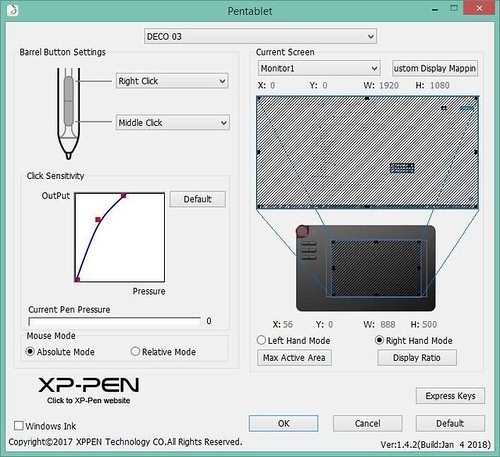
Once installed it was a case of opening the ‘Pen tablet’ software and seeing what all the buttons do. It took about an hour or so to customise the buttons to my liking.
XP-PEN driver supports Windows 10/8/7, Mac OS versions 10.10 and above. compatibility is always being steadily improved through driver updates.
Also compatible with many major designer software such as Photoshop, SAI, Painter, Illustrator, Clip Studio, and more. you should contact XP-Pen support directly if you want to know if the tablet is compatible with the drawing program you use, but most major drawing programs should be compatible. Their customer support is also very kind so there’s no need to be afraid of contacting them directly.

xp-pen graphics tablet
You can adjust the active area to better fit the size and shape of your screen. Adjusting the pen sensitivity curve is also easy. It grants a smooth and responsive drawing experience overall, with no notable lag or jitter.
To my surprise the tablet is wireless too! On the back it has an on/off button and when left idle for 30 minutes has a sleep mode. There are very small lights next to icons that indicate if it’s in range, wireless mode being on / off and a battery indicator. You can just leave the USB receiver plugged in, this is a very nifty feature!

Drawing performance


xp-pen graphics tablet
It works really well on Photoshop. The pen is very sensitive, the lines are smooth and tapers nicely. There’s very little activation force require to draw a thin line. You can use the lightest of pressure on the drawing surface and it will produce the thinnest of lines.

There isn’t any major downside to this tablet. It works predictably and the lines come out just the way I expect.the Expresskeys and the dial are really useful.
The overall drawing performance is great unless you’re using Krita. The lines are very smooth and tapers very nicely. Drawing performance is no different from more expensive Wacom tablets. the quality of such tablets are improving at such a fast pace that you can now get something as good at more affordable prices.

Pros

  • Wireless or Wired Connection
  • Red Dial Roller key
  • A Multi-function Red Dial
  • Thin sleek design
  • Type-C USB port
  • Large Drawing Area

Cons

  • Pen lacks an eraser button
  • Drive configuration easy to forget (the novice)
  • the Pen Tilt Sensitivity is none

Summary

I haven’t used many other tablets so I can’t really compared exhaustively. I did use the XP-PEN Deco 02 before and that was a good tablet too. The Deco 03 is slightly more expensive at USD $99 compared to Deco 02’s official retail of USD $90. I guess you can justify the difference in price when you consider the nicer design of Deco 03 and the pen case included.
If this was your first drawing tablet it’s a super affordable and easily contends with the best if not better due to the red scrolling wheel. This would be useful for art or animation students bringing it to class too. 
I do love using the Deco 3,  I do miss tilt and rotate, but that’s the trade off with the price compared to Wacom Intuos.
The Deco-03 tablet is wonderfully and ergonomically designed. It’s thin, lightweight, and durable. It can be used for both right and left hand users. It can be used while directly wired to the PC / MAC or it can be wirelessly used. The Deco-03 has a huge active area of 10″ x 5.62″ and has a pressure sensitivity of 8192 levels.
If you are in the market for a new graphic tablet that won’t break the bank, XP-Pen’s Deco 03 may be the right one for you. It offers a variety of standard features that you need.
If you want to learn more about the Deco 03, check out the link below:
https://www.storexppen.com/buy/56.html

Entering The NFT Art World – Create Your Own NFT Artwork With Drawing Tablet

Entering The NFT Art World – Create Your Own NFT Artwork With Drawing Tablet The Best Graphics Drawing Tablet on NFT Art What is Digital N...